

Government: Fiscal Docs
Cloudbeds Fiscal Documents API Blueprint
1. Overview
The Cloudbeds Fiscal Documents API gives developers programmatic access to the invoice and receipt infrastructure built into the Cloudbeds Fiscal Docs Service. It supports two primary use cases:
- Document retrieval -- querying invoices, receipts, transactions, and recipient data tied to reservations and group bookings. This is useful for reporting pipelines, accounting system syncs, or any workflow that needs to read fiscal document data without generating new documents.
- Fiscal integration -- building a full end-to-end flow for generating, signing, and registering fiscal invoices and receipts with government or tax authorities. This is required for properties operating in countries with active fiscalization mandates.
Both use cases share the same API surface and initial setup steps. Retrieval-only developers can stop after the Retrieving Fiscal Documents section. Fiscal integration developers should read the full guide.
Note: The Cloudbeds Fiscal Docs Service is available to most Cloudbeds customers. If a property does not yet have access, contact [email protected] to request migration.
2. Key Concepts
Fiscalization
Fiscalization is the legal process by which a fiscal document -- such as an invoice or receipt -- is signed, assigned a government identifier, and registered with a national tax authority in real time. It is designed to ensure tax compliance and prevent revenue fraud. The specific requirements vary by country, but typically involve submitting transaction data to a government-approved service that returns a signed response including a receipt number, hash, and QR code. These must be embedded in the final PDF document.
Fiscalized vs. non-fiscalized
Whether a property operates a fiscalized flow depends on two factors: the country's regulations and the property's own configuration. Even in countries where fiscalization is mandated, individual properties can have it disabled -- in that case they fall back to the non-fiscalized flow.
Non-fiscalized flow: Cloudbeds generates the invoice or receipt PDF automatically when the document is created. No third-party service is involved and no webhook action is required from the integration partner.
Fiscalized flow: Before a PDF can be generated, the document must be signed and registered with the relevant government or tax authority via a third-party fiscal service. Cloudbeds signals this requirement by setting the document status to PENDING_INTEGRATION and firing a webhook. The integration partner is responsible for submitting the document to the fiscal service, handling the response, and updating the document status in Cloudbeds. Only then does Cloudbeds generate the PDF.
Document types
| Kind | Description | Fiscalized |
|---|---|---|
INVOICE | A formal billing document that can be issued at any point -- before payment, after payment, or inclusive of payment details. | Yes, where required |
RECEIPT | Proof of payment issued after a transaction is complete. | Yes, where required |
PRO_FORMA_INVOICE | A pre-stay estimate or quote. Not a legally valid tax document. | Never |
CREDIT_NOTE | Reversal document issued when an invoice is cancelled. System-generated -- not created directly by partners. | Yes, where required |
REFUND_RECEIPT | Reversal document issued when a receipt is cancelled. System-generated -- not created directly by partners. | Yes, where required |
Note: Additional document kinds exist for specific country requirements and are covered in Section 13: Country-Specific Considerations.
3. Prerequisites
Cloudbeds Fiscal Docs Service
The Cloudbeds Fiscal Docs Service must be enabled for any property you are integrating with. Most Cloudbeds properties have already been migrated. If a property does not yet have access, contact [email protected] to request enablement.
Sandbox environment
A sandbox account is strongly recommended before building against a production property, and is essential for any fiscalized integration where document registration with government systems is involved. To request a sandbox account, contact [email protected].
Authentication
This API uses bearer token authentication. For details on obtaining and managing API credentials, refer to Cloudbeds API Authentication Guide.
Certification (fiscal integration partners only)
Partners building a fiscalized integration must complete a certification process before going live with Cloudbeds customers. Requirements are called out throughout this guide and consolidated in Section 14: Certification Checklist. Only fiscal integration partners are subject to certification -- retrieval-only integrations do not require it.
4. Initial Setup
Complete these steps once per property before building any document flow. They apply to both retrieval-only and fiscal integration use cases.
Retrieve property configuration
Use GET /api/v1.3/getHotelDetails from the Cloudbeds core API to retrieve the property's location, currency, and legal details. This information is required for correctly formatting fiscal documents and applying the right tax rules.
Verify enabled features
Use GET /fiscal-document/v1/property/features to confirm which fiscal document features are enabled for the property. This includes verifying that the Fiscal Docs Service is active, and checking for any feature flags that affect document creation behavior, such as support for pending transactions on invoices.
Retrieve document configuration
Use GET /fiscal-document/v1/configs to retrieve the property's fiscal document configuration, including invoice numbering sequences and prefix and suffix settings. This configuration governs how document identifiers are generated and must be understood before creating any documents.
Retrieve tax and fee configuration
Use GET /api/v1.3/getTaxesAndFees from the Cloudbeds core API to understand how taxes are structured at the property level. This is required for correctly calculating and displaying tax breakdowns on fiscal documents, and for identifying which taxes are VAT and which are other fee types such as city tax.
Upload property logo (Optional)
Use POST /fiscal-document/v1/configs/logo to upload the property's logo for display on all generated PDF documents. Use GET /fiscal-document/v1/configs/logo to verify the upload was successful. If no logo is uploaded, documents will be generated without one.
5. Retrieving Fiscal Documents
This section covers all endpoints needed to query and retrieve fiscal document data. If you are building a retrieval-only integration -- for reporting, accounting sync, or display purposes -- this section and the Initial Setup section are all you need.
List fiscal documents
Use GET /fiscal-document/v1/fiscal-documents to retrieve a paginated list of fiscal documents for a property. Results can be filtered by a range of criteria including:
- Document kind (
INVOICE,RECEIPT,PRO_FORMA_INVOICE, etc.) - Status (
OPEN,CANCELED,FAILED, etc.) - SourceKind (
GROUP_PROFILE,RESERVATION,HOUSE_ACCOUNT,ACCOUNTS_RECEIVABLE_LEDGER) - Document number partial match
- Creation date range (
createdAtFrom/createdAtTo) - Invoice date range (
invoiceDatePropertyTimezoneFrom/invoiceDatePropertyTimezoneTo) - Due date range (
dueDatePropertyTimezoneFrom/dueDatePropertyTimezoneTo) - Amount range (
amountFrom/amountTo) - Balance range (
balanceFrom/balanceTo)
Results are paginated using cursor-based pagination via the pageToken parameter, with a default page size of 20 and a maximum of 100. Results can be sorted by createdAt, dueDate, invoiceDate, kind, or status.
Retrieve transaction details
Use GET /fiscal-document/v1/fiscal-documents/{id}/transactions to retrieve the individual transactions associated with a specific fiscal document. Use the nestTaxes parameter to nest tax transactions inside their parent transaction rather than returning them as separate top-level items -- this is useful when building tax breakdowns.
-
The
nestTaxesparameter only nests taxes classified as VAT-classified taxes, and non-VAT taxes/fees will always appear as top-level items regardless of this parameter.
The classification is an option to be selected in the tax configuration.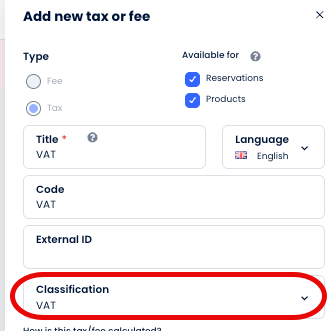
-
Other taxes/fees that are not classified as VAT still appear in the response as top-level items. To reconstruct the parent-child relationship for non-VAT taxes/fees, call
POST /accounting/v1.0/transactionsorPOST /accounting/v1.0/pending-transactions, depending on the transaction type, and use theparentIdfield on the top-level orphan taxes to map them back to their parent.
Use GET /fiscal-document/v1/fiscal-documents/{id}/transactions/summary to retrieve aggregated transaction totals for a document without fetching individual line items.
Retrieve recipients
Use GET /fiscal-document/v1/fiscal-documents/{id}/recipients to retrieve the billing recipient associated with a fiscal document. This may be an individual guest or a company, depending on how the document was issued. For more detail on how recipients are selected, see Section 10: Recipient Selection.
Retrieve allocations (Optional)
Allocations link a payment to the specific charge transactions it applies to. When allocations are enabled for a property, every payment must be allocated to its corresponding transactions before a fiscal document can be generated.
Use GET /fiscal-document/v1/fiscal-documents/allocations to retrieve payment allocations for one or more sources. Use GET /fiscal-document/v1/fiscal-documents/allocations/summary to retrieve aggregated allocation totals. Use GET /fiscal-document/v1/invoices/{id}/receipts/allocations to retrieve all active allocations for a specific invoice, grouped by transaction.
Note: For fiscalized properties that issue receipts, allocations are required rather than optional. This is covered in more detail in Section 8: Fiscal Integration: Generate Receipt.
Download a document PDF
Use GET /fiscal-document/v1/fiscal-documents/{id}/download to download the generated PDF for a fiscal document. A PDF is available when the document is in OPEN, PAID, PARTIALLY_PAID, or COMPLETED status. For fiscalized documents these states are only reached after a successful COMPLETED_INTEGRATION update. For non-fiscalized documents they are reached directly after creation.
Email a document
Use POST /fiscal-document/v1/fiscal-documents/{id}/email to send a fiscal document PDF to a recipient by email directly from Cloudbeds.
6. Fiscal Integration: Overview
This section marks the entry point for fiscal integration partners. If you are building a retrieval-only integration, you do not need to read beyond this point.
A fiscal integration connects Cloudbeds to a government-approved fiscal service to sign and register invoices and receipts in real time. Cloudbeds manages the document lifecycle and PDF generation -- the integration partner is responsible for submitting documents to their own fiscal service, handling the response, and updating the document status in Cloudbeds accordingly.
The integration is webhook-driven. Cloudbeds fires a webhook when a fiscal document requires action, and the partner is expected to process it and report back. Cloudbeds sets PENDING_INTEGRATION and CANCEL_REQUESTED to signal that action is required. The partner is responsible for transitioning the document to COMPLETED_INTEGRATION on a successful generation, and to CANCELED on a successful cancellation. Error handling paths are covered in detail in each flow section and consolidated in Section 12: Error Handling.
Document status lifecycle
The diagram below shows the statuses relevant to fiscal integration partners. Cloudbeds sets PENDING_INTEGRATION and CANCEL_REQUESTED -- the partner is responsible for transitioning to COMPLETED_INTEGRATION on successful generation and CANCELED on successful cancellation.
<fiscal_doc_status_lifecycle.png>
Webhook setup
The fiscal documents integration relies on two webhook events:
| Event | Trigger |
|---|---|
fiscal_document/create | A new fiscal document has been created |
fiscal_document/update | A fiscal document status has been updated |
Both events carry the same payload structure:
{
  "propertyId": "12345",
  "documentKind": "INVOICE",
  "id": "123",
  "event": "create",
  "status": "PENDING_INTEGRATION"
}
Subscribe to both events using POST /api/v1.3/postWebhook. Filter incoming events by status to determine what action is required:
PENDING_INTEGRATION-- begin the generate invoice or receipt flowCANCEL_REQUESTED-- begin the cancel document flow
For full details on subscribing to, listing, and deleting webhooks, refer to the Cloudbeds Webhooks documentation.
Note: The order of webhook delivery is not guaranteed and duplicate events are possible. Your webhook handler should return a 2XX response immediately and process the event asynchronously to avoid timeouts. If your endpoint does not respond within 2 seconds, the event will be retried up to five times with a one-minute delay between attempts.
Fiscalization setup
Complete these steps once per property before processing any fiscal documents. These are in addition to the general setup steps covered in Section 4: Initial Setup.
Register the property
Use POST /fiscal-document/v1/fiscalization/registration to register the property's legal entity details with the fiscal service. This includes the property's legal name, tax ID, and address. Use GET /fiscal-document/v1/fiscalization/registration to verify the registration and PUT /fiscal-document/v1/fiscalization/registration to update it if details change.
Configure tax mappings
Use GET /fiscal-document/v1/fiscalization/tax/rules to retrieve the country-specific tax categories and rates supported by the fiscal service. Use these rules to map the property's existing Cloudbeds tax configuration to the correct fiscal tax categories via PUT /fiscal-document/v1/fiscalization/tax. Use GET /fiscal-document/v1/fiscalization/tax to verify the saved mapping.
Note: Some countries require additional setup steps such as credential registration or document series configuration. These are covered in Section 13: Country-Specific Considerations.
7. Fiscal Integration: Generate Invoice
This section covers the end-to-end flow for generating a fiscalized invoice. The flow is triggered by a webhook and requires the partner to submit the document to their government fiscal service before Cloudbeds can generate the final PDF.
1. Listen for the webhook
Subscribe to the fiscal_document/create and fiscal_document/update webhook events as described in Section 6: Fiscal Integration Overview. Filter for events where status is PENDING_INTEGRATION and documentKind is INVOICE. Use the id in the payload to retrieve the full document in the next step.
2. Retrieve document data
Before submitting to the government fiscal service, gather all data associated with the document.
Retrieve the fiscal document
Use GET /fiscal-document/v1/fiscal-documents with the ids filter to retrieve the full fiscal document record.
Retrieve transactions
Use GET /fiscal-document/v1/fiscal-documents/{id}/transactions to retrieve all transactions associated with the document. Use the nestTaxes parameter to nest tax transactions inside their parent transaction for easier tax breakdown calculation.
For each transaction, use the following endpoints from the Cloudbeds core API to retrieve additional detail as needed:
GET /api/v1.3/getItems-- item details for charge transactionsGET /api/v1.3/getPaymentMethods-- payment method detailsGET /api/v1.3/getTaxesAndFees-- tax and fee details
Retrieve the recipient
Use GET /fiscal-document/v1/fiscal-documents/{id}/recipients to retrieve the billing recipient for the document. There are four possible recipient types:
- Guest -- the invoice is addressed to a guest on the reservation.
- Guest company -- the guest has requested the invoice be addressed to a company for tax purposes, entered under the company details on their guest profile. This allows the company to offset taxes paid against their own tax obligations.
- Company -- the invoice is addressed directly to a company, typically for group bookings or event-based billing.
- Company individual -- the invoice is addressed to a specific individual within a company.
Note: Recipient information is fixed at the time the fiscal document is created and cannot be altered on an existing record. If recipient details change in Cloudbeds after the document has been created, those changes will not be reflected on the fiscal document. To correct recipient information, the document must be cancelled and regenerated after the recipient details have been updated in Cloudbeds.
For more detail on how recipients are selected see Section 10: Recipient Selection.
3. Submit to the government fiscal service
Using the data gathered in the previous step, construct and submit the document payload to your government fiscal service. The service will return a signed response including government identifiers, a QR code, and any required signatures or hashes.
Note: If the property has allowPendingTransactions enabled -- either via PUT /fiscal-document/v1/configs/{documentKind} or in the Cloudbeds UI under Account > Settings > Finance > Invoices and Documents -- invoices may include pending transactions to support deposit and prepayment scenarios.
4. Handle the response
On success
Use PUT /fiscal-document/v1/fiscal-documents/{id} to update the document with the following:
- Set
statustoCOMPLETED_INTEGRATION - Populate the
governmentIntegrationfields with the response from the government fiscal service. Depending on the country and fiscal service, these may include:number-- the government-assigned document numberseries-- the document seriesstatus-- the registration status returned by the government fiscal serviceofficialId/externalId-- government and external identifiersqr-- QR code URL and string for display on the PDFsignatures-- signed data, tokens, or hashes returned by the government fiscal service
Cloudbeds will detect the COMPLETED_INTEGRATION status and trigger PDF generation, incorporating the governmentIntegration fields into the final document.
Note: PDF generation uses a Cloudbeds-managed template. If your integration requires a custom PDF layout, coordinate with Cloudbeds to create a template that meets your needs.
Alternatively, if you need full control over the PDF, you can generate the document yourself and upload it directly via the pdfFileBase64 field in the governmentIntegration payload. The uploaded PDF will be stored and displayed in the Cloudbeds UI in place of the Cloudbeds-generated document.
On any error from the government fiscal service
Use PUT /fiscal-document/v1/fiscal-documents/{id} to update the document with the following:
- Set
statustoFAILED - Set
failReasonto a relevant error message describing the error and the steps the property can take to correct it
Post a workflow event using POST /api/v1.3/createIntegrationEvent with:
{
  "type": "receipt",
  "status": "open",
  "result": "failure",
  "objectID": "<fiscal document id>",
  "description": "Receipt creation failed: <error from response>",
  "details": "<message from response>"
}
Log the full error details including status_code, error, code, and message.
On any other error or timeout
Use PUT /fiscal-document/v1/fiscal-documents/{id} to update the document with the following:
- Set
statustoFAILED - Set
failReasonto a relevant error message describing the error and the steps the property can take to correct it
Log full error details. For general error handling guidelines see Section 12: Error Handling.
8. Fiscal Integration: Generate Receipt
The generate receipt flow follows the same structure as the generate invoice flow in Section 7. This section covers only the differences specific to receipts.
1. Listen for the webhook
Subscribe to the fiscal_document/create and fiscal_document/update webhook events. Filter for events where status is PENDING_INTEGRATION and documentKind is RECEIPT. Receipts can be created via either POST /fiscal-document/v1/fiscal-documents/receipt or POST /fiscal-document/v1/fiscal-documents/simple-receipt -- both trigger the PENDING_INTEGRATION webhook.
2. Retrieve document data
Follow the same data retrieval steps as Section 7 with the following differences:
Receipts do not have recipients. Skip the recipient retrieval step. Receipts are proof of payment and are not addressed to a specific billing entity.
Retrieve allocations. For fiscalized properties that issue receipts, allocations link the payment to the specific charge transactions it covers. The Cloudbeds UI ensures allocations are in place before the webhook fires. Use GET /fiscal-document/v1/fiscal-documents/allocations to retrieve the payment allocations associated with the receipt's source. Use GET /fiscal-document/v1/fiscal-documents/allocations/summary for aggregated totals.
3. Submit to the government fiscal service
Follow the same submission steps as Section 7.
4. Handle the response
Follow the same response handling steps as Section 7, including success, error, and timeout paths.
9. Fiscal Integration: Cancel Document
A cancellation is triggered when a property requests to void an existing fiscal document. Cloudbeds sets the document status to CANCEL_REQUESTED and fires a webhook. The partner is responsible for submitting the reversal to the government fiscal service and updating the document status accordingly.
On a successful cancellation, Cloudbeds system-generates the reversal document automatically -- a CREDIT_NOTE for a cancelled invoice and a REFUND_RECEIPT for a cancelled receipt.
1. Listen for the webhook
Subscribe to the fiscal_document/create and fiscal_document/update webhook events. Filter for events where status is CANCEL_REQUESTED. Use the documentKind in the payload to determine whether the cancellation is for an invoice or a receipt, and follow the appropriate subsection below.
2. Retrieve document data
Follow the same data retrieval steps as the generate flow for the relevant document type. This includes retrieving the fiscal document, its transactions, tax and fee details, and payment method details. This data is used to construct the reversal payload for the government fiscal service, which typically requires the same transaction breakdown as the original document submission.
3a. Submit invoice cancellation to the government fiscal service
Submit the cancellation to the government fiscal service as a reversal of the original invoice. The specific payload requirements will depend on the country and government fiscal service. On success, proceed to step 4.
3b. Submit receipt cancellation to the government fiscal service
Submit the cancellation to the government fiscal service as a reversal of the original receipt. The specific payload requirements will depend on the country and government fiscal service. On success, proceed to step 4.
4. Handle the response
On success
Use PUT /fiscal-document/v1/fiscal-documents/{id} to update the document:
- Set
statustoCANCELED
Cloudbeds will detect the CANCELED status and automatically generate the appropriate reversal document -- a CREDIT_NOTE for an invoice or a REFUND_RECEIPT for a receipt.
On any error from the government fiscal service
Use PUT /fiscal-document/v1/fiscal-documents/{id} to update the document:
- Set
statustoOPEN - Set
failReasonto a relevant error message describing the error and the steps the property can take to correct it
Post a workflow event using POST /api/v1.3/createIntegrationEvent with:
{
  "type": "receipt",
  "status": "open",
  "result": "failure",
  "objectID": "<fiscal document id>",
  "description": "Receipt cancellation failed: <error from response>",
  "details": "<message from response>"
}
Log the full error details including status_code, error, code, and message.
On any other error or timeout
Use PUT /fiscal-document/v1/fiscal-documents/{id} to update the document:
- Set
statustoOPEN - Set
failReasonto a relevant error message describing the error and the steps the property can take to correct it
Log full error details. For general error handling guidelines see Section 12: Error Handling.
10. Recipient Selection
Recipient selection determines the billing entity that appears on a fiscal invoice. Recipients are fixed at the time a fiscal document is created -- if recipient details change in Cloudbeds after the document has been created, the document must be cancelled and regenerated to reflect the updated information.
Recipient types
There are four recipient types:
- Guest -- the invoice is addressed to a guest on the reservation.
- Guest company -- the guest has requested the invoice be addressed to a company for tax purposes, entered under the company details on their guest profile. This allows the company to offset taxes paid against their own tax obligations.
- Company -- the invoice is addressed directly to a company, typically for group bookings or event-based billing.
- Company individual -- the invoice is addressed to a specific individual within a company.
Reservations vs. groups
On a reservation, available recipients are drawn from the guests on the reservation and any company details associated with their profiles. On a group booking, available recipients are drawn from the company linked to the group and any contact individuals associated with it.
Retrieving available recipients
Use GET /fiscal-document/v1/fiscal-documents/{id}/recipients to retrieve the list of available recipients for a specific fiscal document. Only recipients that pass the property's configured validation rules are returned.
UI behavior
When a property generates an invoice from the Cloudbeds UI, all available recipients for that document are listed for selection. Recipients that do not meet the validation requirements are shown with an annotation indicating which fields are incomplete, allowing the property to identify and resolve missing information before proceeding.
Validation
Recipient validation is template-driven. Field requirements -- such as tax ID, legal name, and address -- are defined in recipient templates configured for the property. Only recipients that satisfy all required fields in the template are eligible to be added to a fiscal document.
Validation requirements vary by country and document type. Partners should work with Cloudbeds to ensure the recipient field templates are correctly configured for their target market before going live. If a recipient is missing required fields, the property will need to update the guest or company profile in Cloudbeds before the invoice can be generated.
11. PDF Document Requirements
PDF content and formatting requirements for fiscal documents are defined by the relevant government authority in each country. Partners are responsible for ensuring their generated documents meet the legal requirements of their target market.
Language
At minimum, the PDF must be produced in both the property's local language and English. Some governments impose additional language requirements -- partners should verify the applicable rules for each country they operate in.
Custom PDF templates
If the Cloudbeds-generated PDF does not meet the requirements for a given country, partners can either work with Cloudbeds to adapt the managed template, or generate and upload the PDF themselves via the pdfFileBase64 field in the governmentIntegration payload as described in Section 7: Fiscal Integration: Generate Invoice.
12. Error Handling
This section consolidates the error handling patterns that apply across all fiscal integration flows. For flow-specific context, refer to the relevant section.
Error types
There are two categories of error to handle:
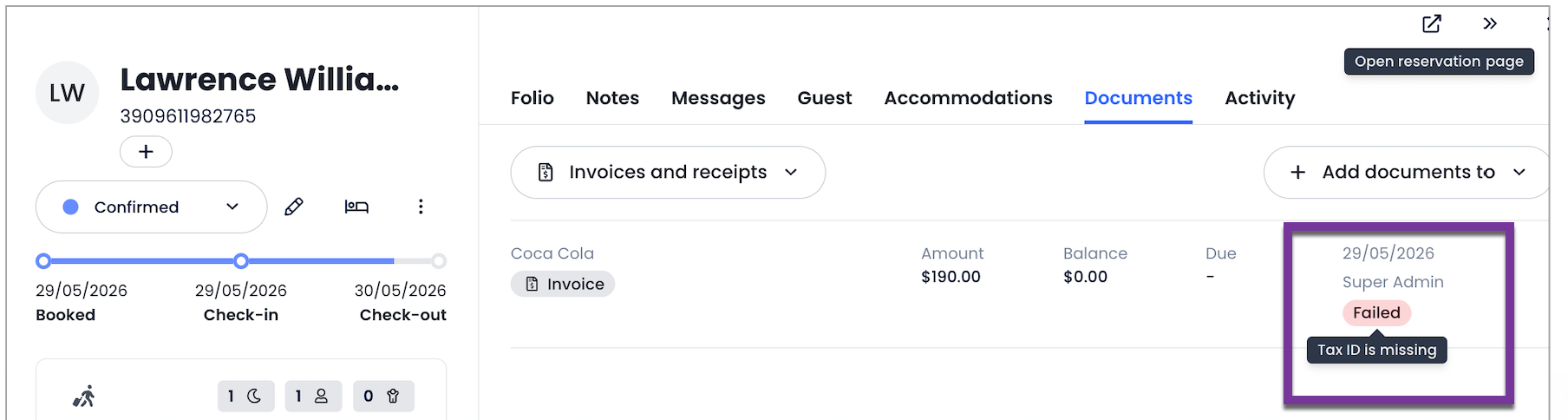
Errors from the government fiscal service -- any error response returned by the government fiscal service during document submission or cancellation. These should be treated as actionable failures where the property may be able to correct the issue and retry:
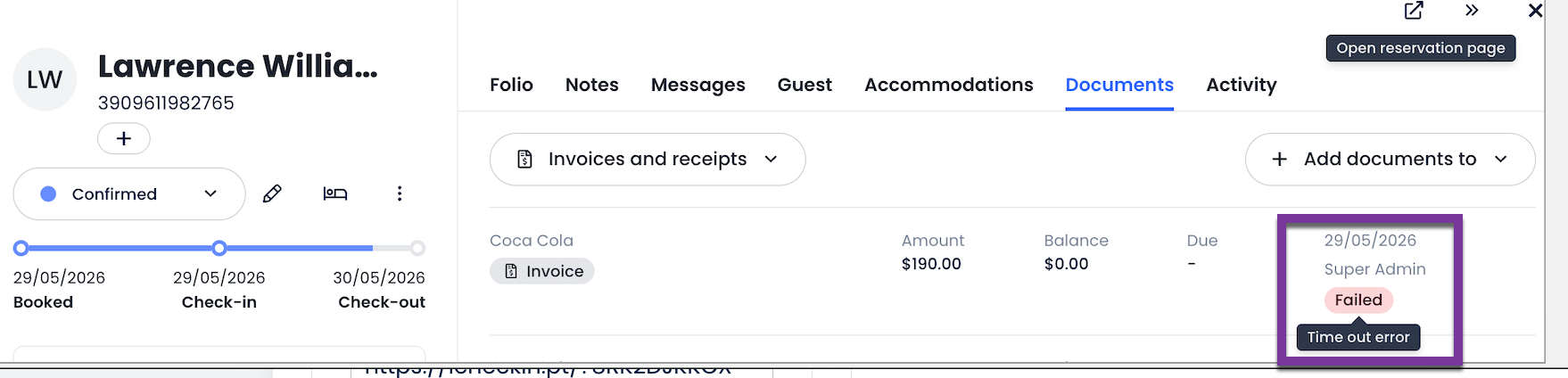
Unexpected errors and timeouts -- any error that occurs outside of the government fiscal service response, such as a network timeout, an unhandled exception, or an unexpected response format. These should be treated as system failures requiring investigation:
Generate flow error handling
On any error from the government fiscal service
Use PUT /fiscal-document/v1/fiscal-documents/{id} to update the document:
- Set
statustoFAILED - Set
failReasonto a relevant error message describing the error and the steps the property can take to correct it
Post a workflow event using POST /api/v1.3/createIntegrationEvent with:
{
  "type": "receipt",
  "status": "open",
  "result": "failure",
  "objectID": "<fiscal document id>",
  "description": "Receipt creation failed: <error from response>",
  "details": "<message from response>"
}
On any other error or timeout
Use PUT /fiscal-document/v1/fiscal-documents/{id} to update the document:
- Set
statustoFAILED - Set
failReasonto a relevant error message describing the error and the steps the property can take to correct it
Cancel flow error handling
On any error from the government fiscal service
Use PUT /fiscal-document/v1/fiscal-documents/{id} to update the document:
- Set
statustoOPEN - Set
failReasonto a relevant error message describing the error and the steps the property can take to correct it
Post a workflow event using POST /api/v1.3/createIntegrationEvent with:
{
  "type": "receipt",
  "status": "open",
  "result": "failure",
  "objectID": "<fiscal document id>",
  "description": "Receipt cancellation failed: <error from response>",
  "details": "<message from response>"
}
On any other error or timeout
Use PUT /fiscal-document/v1/fiscal-documents/{id} to update the document:
- Set
statustoOPEN - Set
failReasonto a relevant error message describing the error and the steps the property can take to correct it
User-facing error messages
Error messages set in failReason and posted via createIntegrationEvent are displayed to property staff in the Cloudbeds UI. These messages should be localised to the property or user's configured language where supported -- localisation is the responsibility of the integration partner.
Messages should be clear and actionable, describing both what went wrong and what steps the property can take to resolve the issue before retrying.
Webhook retry behaviour
If your webhook endpoint does not respond within 2 seconds or returns a non-2XX response, Cloudbeds will retry the event up to five times with a one-minute delay between attempts. Ensure your endpoint returns a 2XX response immediately and processes events asynchronously to avoid unintended retries.
13. Country-Specific Considerations
This section covers country-specific document types, terminology, and setup requirements. The core integration flows described in Sections 7 through 9 apply in all cases -- this section documents deviations and additions only.
Additional countries will be added to this section as Cloudbeds expands fiscalization support.
Spain
Overview
Spain requires fiscalization for properties that have it enabled at the property level. Properties in Spain that do not have fiscalization enabled fall back to the non-fiscalized flow.
Document types and terminology
Spain uses specific terminology for its fiscal document types that differs from the generic terms used elsewhere in this guide:
| Spain term | Generic equivalent | Description |
|---|---|---|
| Simplified Invoice | INVOICE | For amounts up to €3,000. Does not require recipient details. |
| Complete Invoice | INVOICE | For amounts over €3,000, or where recipient details are provided. |
| Rectification | RECTIFY_INVOICE | An amendment to an existing invoice. Not a cancellation -- the original invoice remains valid. |
Flow deviations
Rectification is a Spain-specific document type used to amend an existing invoice. It follows the same webhook-driven flow as invoice generation -- listen for PENDING_INTEGRATION events with documentKind of RECTIFY_INVOICE and process them using the same steps as described in Section 7: Fiscal Integration: Generate Invoice.
Cancellation of invoices in Spain follows the standard cancel flow described in Section 9: Fiscal Integration: Cancel Document.
Italy
Overview
Italy requires fiscalization for all registered properties. Invoices and receipts in Italy operate as entirely independent document streams -- they are not linked to each other and are reported separately to the Italian tax authority.
Document types
Italy uses the standard document kinds -- INVOICE, RECEIPT, CREDIT_NOTE, and REFUND_RECEIPT -- without additional country-specific terminology.
Flow deviations
Because invoices and receipts are independent in Italy, each must be submitted to the government fiscal service as a separate, standalone document. Do not attempt to link or cross-reference invoices and receipts in the submission payload.
Portugal
Overview
Portugal requires fiscalization for all registered properties. Portugal's fiscal framework is built around the SAF-T (PT) standard -- a government-mandated XML audit file format used to report invoicing and accounting data to the Autoridade Tributária e Aduaneira (AT), the Portuguese tax authority. All invoicing software must be certified by the AT.
A key characteristic of Portugal's fiscal model is that receipts are closely tied to invoices. An INVOICE_RECEIPT, registered under the SAF-T prefix FR, represents a combined invoice and proof of payment issued in a single document.
SAF-T document type prefixes
Portugal's SAF-T standard identifies each document type with a prefix that must be registered with the AT before documents can be issued. The prefixes used in the Cloudbeds fiscal integration are:
| Prefix | Document type | Cloudbeds kind |
|---|---|---|
FT | Fatura (Standard Invoice) | INVOICE |
FR | Fatura-Recibo (Invoice-Receipt) | INVOICE_RECEIPT |
NC | Nota de Crédito (Credit Note) | CREDIT_NOTE |
ND | Nota de Débito (Debit Note) | INVOICE |
RG | Recibo (Receipt) | RECEIPT |
Additional setup: credentials and series registration
Portugal requires two additional setup steps beyond the general fiscalization setup described in Section 6.
Register AT credentials
Use PUT /fiscal-document/v1/fiscalization/credentials to set the property's Autoridade Tributária e Aduaneira (AT) web services credentials. Credentials are validated against the AT before being stored. This step must be completed before series registration.
Register document series
Portugal requires each document type to be registered with the AT under a named series before any documents can be issued. Use GET /fiscal-document/v1/fiscalization/series/rules to retrieve the available document type prefixes and series types for Portugal. Then use PUT /fiscal-document/v1/fiscalization/series to register and configure the series for the property. Use GET /fiscal-document/v1/fiscalization/series to verify the saved configuration.
Series names follow the format {prefix} {baseName} -- for example, FT CB-2026. Three series types are available:
| Code | Name | Use |
|---|---|---|
N | Normal | Production documents |
F | Training | Test and sandbox documents |
R | Recovery | Documents issued during system unavailability |
14. Certification Checklist
This checklist consolidates all requirements for fiscal integration partner certification. Items are grouped by phase. All items are required unless marked (Optional).
This checklist applies to fiscal integration partners only. Retrieval-only integrations do not require certification.
Initial setup
- Use
GET /api/v1.3/getHotelDetailsto retrieve property configuration - Use
GET /fiscal-document/v1/property/featuresto verify enabled features - Use
GET /fiscal-document/v1/configsto retrieve document configuration - Use
GET /api/v1.3/getTaxesAndFeesto retrieve tax and fee configuration - Use
POST /fiscal-document/v1/configs/logoto upload property logo (Optional)
Fiscalization setup
- Use
POST /fiscal-document/v1/fiscalization/registrationto register the property's legal entity details - Use
GET /fiscal-document/v1/fiscalization/tax/rulesandPUT /fiscal-document/v1/fiscalization/taxto configure tax mappings
Generate invoice
- Subscribe to
fiscal_document/createandfiscal_document/updatewebhook events viaPOST /api/v1.3/postWebhook - Filter for
PENDING_INTEGRATIONstatus andINVOICEdocument kind - Use
GET /fiscal-document/v1/fiscal-documentsto retrieve the fiscal document - Use
GET /fiscal-document/v1/fiscal-documents/{id}/transactionsto retrieve transactions - Use
GET /fiscal-document/v1/fiscal-documents/{id}/recipientsto retrieve the recipient - Submit document to the government fiscal service
- On success, use
PUT /fiscal-document/v1/fiscal-documents/{id}to set status toCOMPLETED_INTEGRATIONand populategovernmentIntegrationfields - On error, use
PUT /fiscal-document/v1/fiscal-documents/{id}to set status toFAILEDand set a descriptivefailReason - On error, post a workflow event via
POST /api/v1.3/createIntegrationEvent
Generate receipt
- Filter for
PENDING_INTEGRATIONstatus andRECEIPTdocument kind - Use
GET /fiscal-document/v1/fiscal-documents/allocationsto retrieve payment allocations - Submit document to the government fiscal service
- On success, use
PUT /fiscal-document/v1/fiscal-documents/{id}to set status toCOMPLETED_INTEGRATIONand populategovernmentIntegrationfields - On error, use
PUT /fiscal-document/v1/fiscal-documents/{id}to set status toFAILEDand set a descriptivefailReason - On error, post a workflow event via
POST /api/v1.3/createIntegrationEvent
Cancel document
- Filter for
CANCEL_REQUESTEDstatus - Retrieve document data including transactions and tax details
- Submit cancellation to the government fiscal service
- On success, use
PUT /fiscal-document/v1/fiscal-documents/{id}to set status toCANCELED - On error, use
PUT /fiscal-document/v1/fiscal-documents/{id}to revert status toOPENand set a descriptivefailReason - On error, post a workflow event via
POST /api/v1.3/createIntegrationEvent
Error handling
- All user-facing error messages are localised to the property or user's configured language
- Webhook endpoint returns a 2XX response immediately and processes events asynchronously
Country-specific requirements
Spain
- Handle
RECTIFY_INVOICEdocument kind using the generate invoice flow
Italy
- Invoices and receipts are submitted to the government fiscal service as independent, unlinked documents
Portugal
- Use
PUT /fiscal-document/v1/fiscalization/credentialsto register AT credentials before series registration - Use
PUT /fiscal-document/v1/fiscalization/seriesto register document series with the AT for each required SAF-T prefix - Handle
INVOICE_RECEIPT(FR) document kind
Updated about 2 months ago